
Data Validation
Since v1.4.0 you can attach data-validation rules to cells and ranges — dropdown lists, numeric/date/time/length comparisons, and custom formula checks — with optional input prompts and error alerts, exactly like Excel’s Data Validation.
Note: Authoring validation rules is a Pro feature. Reading and enforcement (
getValidations,getValidationAt,validate) run in Lite, so rules authored in Pro — or imported from xlsx — are still enforced in the free tier.
Attaching a rule
Attach a ValidationRule to a range, a single cell, or an explicit rectangle:
import { createReogrid } from '@reogrid/pro'

const grid = createReogrid({ workspace: '#app' })
const ws = grid.worksheet
ws.setGridSize(100, 8)  // the default sheet is 40 rows

// A whole column
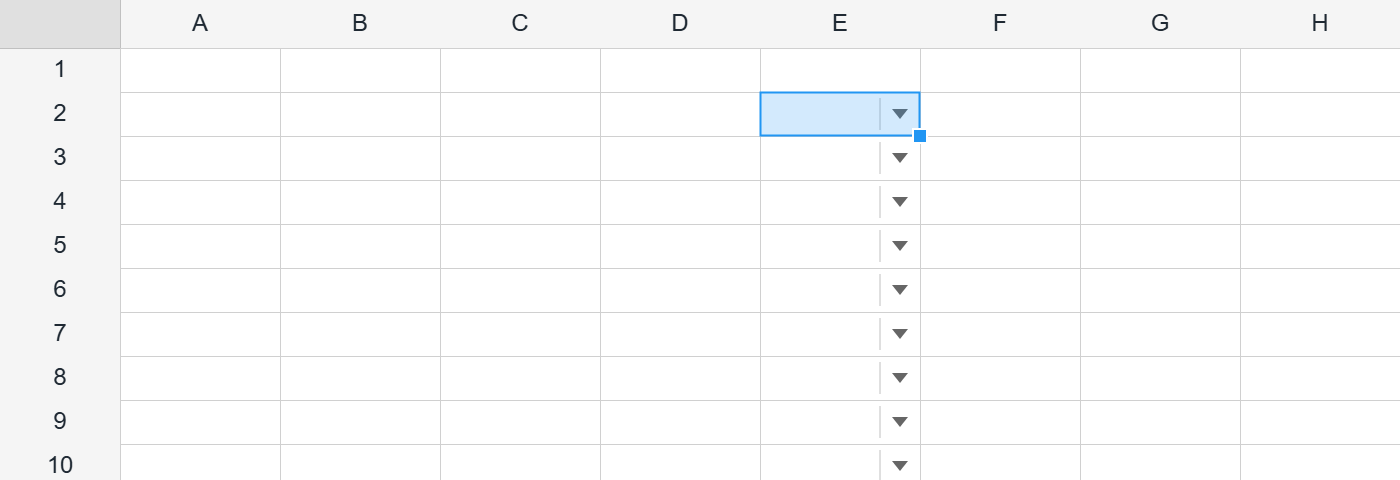
ws.range('E2:E100').setValidation({ type: 'list', options: ['Low', 'Medium', 'High'] })

// A single cell
ws.cell('B2').setValidation({ type: 'whole', operator: 'between', value1: 1, value2: 100 })

// An explicit rectangle (r1, c1, r2, c2)
ws.setValidation(1, 3, 99, 3, { type: 'decimal', operator: 'greaterThan', value1: 0 })
A sheet starts at 40 rows, and a range that reaches past the last row is dropped without a warning — formats, styles, conditional formats and validation rules all fall silently on the floor. Call
setGridSize()(or size the sheet from your data) before addressing something likeB2:B100.
setValidation returns the rule’s id. Remove rules with ws.removeValidation(id) (one rule), ws.range(...).clearValidations() (every rule that overlaps the range — the whole rule, not just the overlap) or ws.clearValidations() (all rules on the sheet).
Base options (every rule)
Every rule extends a shared base:
| Option | Type | Default | Description |
|---|---|---|---|
ignoreBlank | boolean | true | Empty input always passes. |
alertStyle | 'stop' | 'warning' | 'information' | 'stop' | Only 'stop' blocks the write; the others are advisory. |
showInputMessage | boolean | false | Show a prompt bubble when the cell is selected. |
inputTitle / inputMessage | string | — | Prompt bubble content. |
showErrorMessage | boolean | true | Show an alert bubble when an invalid value is rejected. |
errorTitle / errorMessage | string | — | Alert bubble content. |
Rule types
List (dropdown)
Provide inline options or a same-sheet source range/formula — the two are mutually exclusive:
// Inline options
ws.range('B2:B100').setValidation({
  type: 'list',
  options: ['Draft', 'In review', 'Done'],
  showInputMessage: true,
  inputTitle: 'Status',
  inputMessage: 'Pick a status from the dropdown.',
})

// Source range (resolved at use)
ws.range('A2:A100').setValidation({
  type: 'list',
  source: '=$H$1:$H$5',
  showDropdown: true, // render the dropdown arrow (default true)
})
Choosing from the keyboard
Since v1.6.0 a list dropdown can be driven entirely from the keyboard, so a validated field is part of the same typing flow as every other cell:
| Key | Action |
|---|---|
| ↓ while editing | Opens the dropdown |
| Alt+↓ while the cell is selected | Opens the dropdown |
| ↑ / ↓ while open | Moves through the options |
| Enter | Commits the highlighted option |
| Escape | Closes without choosing |
The list opens at the current value (or the first entry when the cell is empty), so ↓ then Enter is a two-keystroke pick. The choice is committed through the editor, so validation and form navigation both still apply.
Comparison (whole / decimal / date / time / textLength)
type picks the value domain; operator and value1 (plus value2 for between / notBetween) define the test. Literals or formula strings are both accepted:
// Whole number between 1 and 100
ws.range('C2:C100').setValidation({
  type: 'whole', operator: 'between', value1: 1, value2: 100,
  errorMessage: 'Quantity must be a whole number from 1 to 100.',
})

// Positive decimal
ws.range('D2:D100').setValidation({ type: 'decimal', operator: 'greaterThan', value1: 0 })

// Date on or after today (advisory warning)
ws.range('E2:E100').setValidation({
  type: 'date', operator: 'greaterThanOrEqual', value1: '=TODAY()',
  alertStyle: 'warning', errorMessage: 'The due date is in the past.',
})

// Text length ≤ 5
ws.range('F2:F100').setValidation({ type: 'textLength', operator: 'lessThanOrEqual', value1: 5 })
Operators: between · notBetween · equal · notEqual · greaterThan · lessThan · greaterThanOrEqual · lessThanOrEqual.
Custom (formula)
Any formula that returns a truthy value is valid. Relative references are offset by (row - r1, col - c1) from the range’s top-left — the same relative-reference semantics as conditional-format expression rules:
// G2:G100 must be greater than the value to its left
ws.range('G2:G100').setValidation({
  type: 'custom',
  formula: '=G2>F2',
  errorMessage: 'Value must exceed the previous column.',
})
Any
{ type: 'any' } clears the effective rule while keeping any input prompt — useful for showing a hint without restricting input.
Alert styles
Only alertStyle: 'stop' (the default) actually blocks an invalid entry. 'warning' and 'information' surface the message but still allow the value through — pick them when you want to guide rather than enforce.
Reading and validating (Lite-readable)
ws.getValidations()          // ValidationEntry[]
ws.getValidationAt(row, col) // the rule covering a cell, or null
ws.validate(row, col, input) // { valid, alertStyle, title?, message? } — a pure check, writes nothing
validate tests one input against the rule covering the cell. Rules check only what is entered after they exist, so to audit values already in the sheet (or loaded with a workbook), run each cell’s current input through it:
for (const { range } of ws.getValidations()) {
  for (let r = range.r1; r <= range.r2; r++) {
    for (let c = range.c1; c <= range.c2; c++) {
      const input = ws.getCellInput(r, c) ?? ''
      if (input.startsWith('=')) continue   // a formula would be checked as its text
      if (!ws.validate(r, c, input).valid) console.log('invalid', r, c)
    }
  }
}
These run in Lite, and Pro-authored rules enforce in Lite too.
xlsx round-trip
Rules serialize to <dataValidations> and round-trip through both xlsx and ReoGrid JSON, so a validated workbook keeps its rules when opened in Excel and back.
Related
- Cell Tooltip — richer contextual hints alongside validation prompts.
- Formula Engine — the functions available in custom-rule and comparison formulas.
- Cell Types — dropdown cell types for fixed choice lists.