
Dropdown with Data Validation
Attach an Excel-style validation rule (入力規則) to a range. A list rule auto-renders a dropdown — no separate cell type needed — and other rule types reject out-of-range input. Introduced in v1.4.
Pro only.
setValidationrequires a validlicenseKey. Reads (getValidations,validate) work in Lite, so Pro-authored rules still enforce in a Lite viewer.
A dropdown from an explicit list
import { createReogrid } from '@reogrid/pro';

const grid = createReogrid('#grid', { licenseKey: 'YOUR-LICENSE-KEY' });
const ws = grid.worksheet;

// The default sheet is 40 rows — grow it first, or a rule aimed past row 40
// is silently dropped.
ws.setGridSize(100, 8);

ws.range('B2:B100').setValidation({
  type: 'list',
  options: ['Draft', 'In review', 'Done'],
  showInputMessage: true,
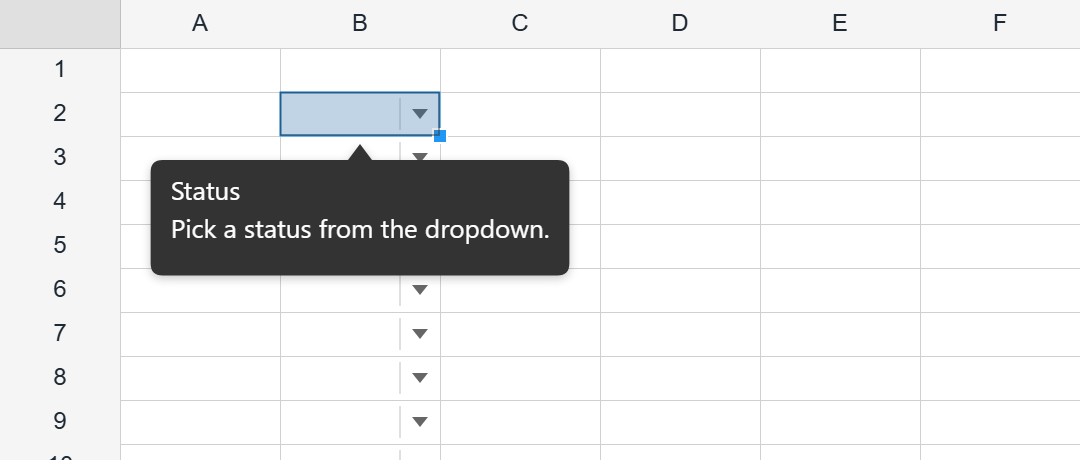
  inputTitle: 'Status',
  inputMessage: 'Pick a status from the dropdown.',
});
A sheet starts at 40 rows, and a range that reaches past the last row is dropped without a warning — formats, styles, conditional formats and validation rules all fall silently on the floor. Call
setGridSize()(or size the sheet from your data) before addressing something likeB2:B100.
Each cell in the range now shows a dropdown arrow and only accepts one of the listed values.
A dropdown backed by a range
Use a same-sheet source range or formula instead of inline options (the two are mutually exclusive) — handy when the choices live in a lookup column:
ws.range('A2:A100').setValidation({
  type: 'list',
  source: '=$H$1:$H$5', // resolved at use
  showDropdown: true,    // render the dropdown arrow (default true)
});
Block out-of-range numbers
whole / decimal / date / time / textLength rules use an operator plus value1 (and value2 for between / notBetween). Only the stop alert style blocks the edit; warning and information are advisory:
// Whole number between 1 and 100 — reject anything else.
ws.range('C2:C100').setValidation({
  type: 'whole',
  operator: 'between',
  value1: 1,
  value2: 100,
  errorMessage: 'Quantity must be a whole number from 1 to 100.',
});

// Due date on or after today — advisory warning only.
ws.range('E2:E100').setValidation({
  type: 'date',
  operator: 'greaterThanOrEqual',
  value1: '=TODAY()',
  alertStyle: 'warning',
  errorMessage: 'The due date is in the past.',
});
Operators: between · notBetween · equal · notEqual · greaterThan · lessThan · greaterThanOrEqual · lessThanOrEqual.
Custom formula rule
Any formula that returns a truthy value passes. Relative references are offset from the range’s top-left:
// G2:G100 must exceed the value to its left.
ws.range('G2:G100').setValidation({
  type: 'custom',
  formula: '=G2>F2',
  errorMessage: 'Value must exceed the previous column.',
});
Read and remove
ws.getValidationAt(1, 1); // rule covering a cell, or null
ws.getValidations();      // all rules on the sheet
ws.validate(1, 1, 'Foo'); // test a value without writing it

ws.range('B2:B100').clearValidations(); // rules overlapping the range
ws.clearValidations();    // remove every rule on the sheet
Rules round-trip through xlsx <dataValidations> and ReoGrid JSON.
See also
- Data Validation
- Colored Status Dropdown — color rows by the selected value
- Cell Types
Sorry to hear that. What could be improved?