

Conditional formatting let the grid style itself after the fact. This time we stop problems before they land: quantities that must be whole numbers from 1 to 100, statuses picked from a dropdown, due dates that warn when they’re in the past — all rejected or flagged the instant someone types them. No form framework, no validation loop, no “please check row 37” cleanup pass. You declare the rules once and the grid enforces them at the cell.
What is data validation?
Data validation restricts what a user may type into a cell. You attach a rule — “this column only accepts a whole number from 1 to 100” — and every edit is checked against it before the value is written. Invalid input gets an alert bubble and (by default) is rejected outright. It’s the same Data → Data Validation feature Excel users have leaned on for decades, now on a canvas grid in the browser.
ReoGrid Web (since v1.4.0) supports the full Excel rule set:
| Type | Accepts | Example |
|---|---|---|
list | One of a fixed set of options | Status must be Low / Medium / High |
whole / decimal | Numbers passing a comparison | Quantity between 1 and 100 |
date / time | Dates/times passing a comparison | Due date >= TODAY() |
textLength | Text whose length passes a comparison | Code of 5 characters or fewer |
custom | Any formula that evaluates truthy | =G2<D2 (discount below unit price) |
Authoring rules (
setValidation) is a Pro feature (pricing) — but enforcement is not. Rules authored in Pro, or imported from an xlsx file, are enforced in the free Lite tier too. More on that below.
The simplest rule
Attach a rule to a range, a single cell, or an explicit rectangle with setValidation:
import { createReogrid } from '@reogrid/pro';

const { worksheet: ws } = createReogrid('#grid');
ws.setGridSize(100, 8);  // the default sheet is 40 rows

// A whole column: dropdown of three choices
ws.range('B2:B100').setValidation({ type: 'list', options: ['Low', 'Medium', 'High'] });

// A single cell: whole number from 1 to 100
ws.cell('C2').setValidation({ type: 'whole', operator: 'between', value1: 1, value2: 100 });
A sheet starts at 40 rows, and a range that reaches past the last row is dropped without a warning — formats, styles, conditional formats and validation rules all fall silently on the floor. Call
setGridSize()(or size the sheet from your data) before addressing something likeB2:B100.
That’s the whole pattern. Everything else is choosing the rule type and deciding how loudly to complain.
Worked example: an order-entry sheet that rejects bad input
Let’s build the classic case — a sheet other people type into. Six columns, six different rules, and not one line of imperative validation code. This is the complete build:
import { createReogrid } from '@reogrid/pro';

const { worksheet: ws } = createReogrid('#grid');

ws.suspendRender(); // batch the initial build

// ── Columns ──
const HEADERS = ['Product', 'Priority', 'Qty (1–100)', 'Unit Price', 'Due Date', 'Code (≤5)'];
[120, 110, 110, 110, 120, 110].forEach((w, c) => { ws.column(c).width = w; });

HEADERS.forEach((h, c) => {
  ws.cell(0, c).setValue(h).setStyle({
    bold: true, backgroundColor: '#1e3a5f', color: '#e2e8f0', textAlign: 'center',
  });
});
ws.row(0).height = 30;

// ── Helper list in column H — the Product dropdown's source ──
['Apple', 'Banana', 'Cherry', 'Date', 'Elderberry'].forEach((p, i) => {
  ws.setCellInput(i, 7, p);
});

// ── Rule 1: Product — dropdown fed by a range ──
ws.range('A2:A13').setValidation({
  type: 'list', source: '=$H$1:$H$5',
  showInputMessage: true,
  inputTitle: 'Product', inputMessage: 'Pick a product from the dropdown.',
  errorMessage: 'Choose one of the listed products.',
});

// ── Rule 2: Priority — dropdown with inline options ──
ws.range('B2:B13').setValidation({ type: 'list', options: ['Low', 'Medium', 'High'] });

// ── Rule 3: Qty — whole number from 1 to 100 ──
ws.range('C2:C13').setValidation({
  type: 'whole', operator: 'between', value1: 1, value2: 100,
  showInputMessage: true,
  inputTitle: 'Quantity', inputMessage: 'Enter a whole number from 1 to 100.',
  errorTitle: 'Invalid quantity',
  errorMessage: 'Quantity must be a whole number between 1 and 100.',
});

// ── Rule 4: Unit Price — any positive decimal ──
ws.range('D2:D13').setValidation({
  type: 'decimal', operator: 'greaterThan', value1: 0,
  errorMessage: 'Unit price must be a positive number.',
});

// ── Rule 5: Due Date — today or later, but only a warning ──
ws.range('E2:E13').setValidation({
  type: 'date', operator: 'greaterThanOrEqual', value1: '=TODAY()',
  alertStyle: 'warning',
  errorMessage: 'The due date is in the past.',
});

// ── Rule 6: Code — at most 5 characters ──
ws.range('F2:F13').setValidation({
  type: 'textLength', operator: 'lessThanOrEqual', value1: 5,
  errorMessage: 'Code must be 5 characters or fewer.',
});

ws.resumeRender();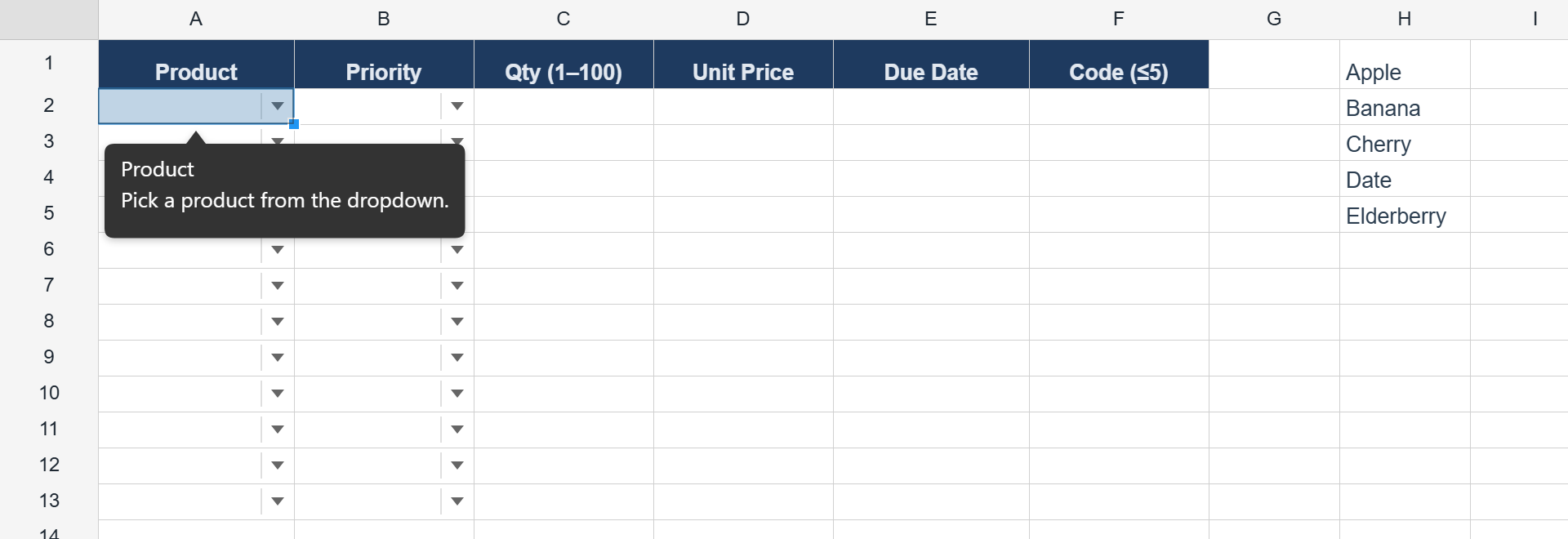
Type 250 into the Qty column and it bounces with an alert. Click a Product cell and a prompt bubble plus a dropdown arrow appear. Type last week’s date under Due Date and you get a warning — but it goes through, because that rule is advisory. Six columns, six declarations. Try the live version in the data validation demo.
A few things worth unpacking.
list — dropdowns, two ways
A list rule renders a dropdown arrow on the cell and restricts input to the entries. Feed it either inline options or a same-sheet source range — the two are mutually exclusive:
// Inline: the choices live in the rule
ws.range('B2:B100').setValidation({
  type: 'list',
  options: ['Draft', 'In review', 'Done'],
});

// Source: the choices live in cells, resolved at use
ws.range('A2:A100').setValidation({
  type: 'list',
  source: '=$H$1:$H$5',
  showDropdown: true, // the dropdown arrow — default true
});
The source form is what you want when the option list is data: edit H1:H5 and every dropdown picks up the change, no rule surgery required.
How does this differ from a dropdown cell type? A cell type changes how the cell renders and edits; a list rule constrains what the cell accepts — including values pasted in or typed free-hand — and it survives the trip through xlsx as a native Excel dropdown.
Comparisons — whole, decimal, date, time, textLength
The five comparison types share one shape: type picks the value domain, operator picks the test, and value1 (plus value2 for the two-value operators) supplies the bounds. Literals and formula strings are both accepted:
// Whole number between 1 and 100
ws.range('C2:C100').setValidation({
  type: 'whole', operator: 'between', value1: 1, value2: 100,
});

// Positive decimal
ws.range('D2:D100').setValidation({ type: 'decimal', operator: 'greaterThan', value1: 0 });

// Date no earlier than today — a formula as the bound
ws.range('E2:E100').setValidation({
  type: 'date', operator: 'greaterThanOrEqual', value1: '=TODAY()',
});

// Text of at most 5 characters
ws.range('F2:F100').setValidation({ type: 'textLength', operator: 'lessThanOrEqual', value1: 5 });
The operators map one-to-one to Excel: equal, notEqual, greaterThan, lessThan, greaterThanOrEqual, lessThanOrEqual, between, notBetween. The two-value operators (between / notBetween) read both value1 and value2; the rest use value1 only.
Formula bounds like =TODAY() are re-evaluated when the rule runs — the “no past dates” rule stays correct tomorrow without you touching it.
custom — when a comparison isn’t enough
A comparison rule can only look at the value being typed. To validate against other cells — a discount that must stay below the unit price, an end date after a start date — write a formula. Any formula that evaluates truthy passes. Write it for the top-left cell of the range, and ReoGrid offsets the relative references across the rest, the same relative-reference semantics as conditional-format expression rules:
// G must be less than D on the same row
ws.range('G2:G100').setValidation({
  type: 'custom',
  formula: '=G2<D2',   // checked as G3<D3, G4<D4, … down the range
  errorMessage: 'Discount must be below the unit price.',
});
Anything the formula engine can evaluate is fair game, so =AND(G2>0, G2<D2*0.5) works too.
Alert styles — stop, warning, information
Not every rule deserves a hard block. alertStyle picks how much authority a rule has:
| Style | Shows the message | Blocks the value |
|---|---|---|
'stop' (default) | ✅ | ✅ |
'warning' | ✅ | — |
'information' | ✅ | — |
Only 'stop' actually rejects the entry. 'warning' and 'information' surface the message and let the value through — the right choice for “are you sure?” rules like the past-due-date check in the worked example, where the user might legitimately be backfilling last week’s orders.
Input messages — guide before they type
Error alerts fire after a mistake; input messages prevent it. With showInputMessage: true, selecting the cell pops a prompt bubble:
ws.range('C2:C100').setValidation({
  type: 'whole', operator: 'between', value1: 1, value2: 100,
  showInputMessage: true,
  inputTitle: 'Quantity',
  inputMessage: 'Enter a whole number from 1 to 100.',
  errorTitle: 'Invalid quantity',
  errorMessage: 'Quantity must be a whole number between 1 and 100.',
});
One rule now documents itself on focus and defends itself on error. If you only want the hint — a prompt bubble with no restriction at all — use { type: 'any' } with an input message.
Two base options round out the behavior: ignoreBlank (default true) lets empty input through, so a validated column doesn’t fight with partially filled rows; showErrorMessage (default true) can be switched off to reject silently.
Reading and validating in code
Rules aren’t only for keystrokes. You can enumerate them and audit existing data programmatically — say, after loading a workbook or before submitting to a server:
ws.getValidations();                // every rule on the sheet: ValidationEntry[]
ws.getValidationAt(row, col);       // the rule covering one cell, or null
ws.validate(row, col, input);       // would `input` pass the rule at (row, col)? Writes nothing
validate is a pure check of one value: it returns { valid, alertStyle, title?, message? } and never touches the sheet. Why would existing data fail at all, when typed input is checked? Because a rule only guards what is entered after it exists. Values that were in the sheet before you added the rule, or that came in with a workbook, were never checked. To audit them, walk each rule’s range and feed every cell’s current input through validate:
const problems = [];
for (const { range } of ws.getValidations()) {
  for (let r = range.r1; r <= range.r2; r++) {
    for (let c = range.c1; c <= range.c2; c++) {
      const input = ws.getCellInput(r, c) ?? '';
      if (input.startsWith('=')) continue;   // a formula would be checked as its text
      const result = ws.validate(r, c, input);
      if (!result.valid) problems.push({ row: r, column: c, message: result.message });
    }
  }
}
And to take rules off again: ws.removeValidation(id) removes one rule by the id setValidation returned, ws.range('C2:C100').clearValidations() removes every rule that overlaps that range (the whole rule, not just the overlapping part), and ws.clearValidations() empties the sheet.
All three read/validate calls run in Lite — which brings us to the tier line.
Where Lite ends and Pro begins
| Operation | Lite (free) | Pro |
|---|---|---|
| xlsx import, merges, borders, number formats | ✅ | ✅ |
| Enforcing validation rules (typed input checked, dropdowns shown) | ✅ | ✅ |
Reading rules (getValidations, getValidationAt, validate) | ✅ | ✅ |
Authoring rules (setValidation, removeValidation, clearValidations) | — | ✅ |
Built-in functions (SUM, COUNTIF, …) | — | ✅ |
xlsx export (saveAsXlsx) | — | ✅ |
Note the split: the free tier doesn’t just display a validated workbook, it enforces the rules in it. Ship an xlsx template authored in Excel or in Pro, load it in Lite, and users still get the dropdowns, the prompts, and the rejections. Writing new rules from code is where Pro begins.
xlsx round-trip
Rules serialize as standard <dataValidations> elements, so they survive the round trip in both directions. Author rules in the grid, export with saveAsXlsx, and Excel shows the same dropdowns, bounds, prompts and alerts under Data → Data Validation. Import a workbook a colleague built in Excel and their rules enforce in the browser. The same is true through ReoGrid JSON, so validated templates persist through your own storage layer too.
Wrapping up
Data validation turns “please only enter…” comments into rules the grid enforces: list for dropdowns, five comparison types for numbers, dates and text length, custom formulas for cross-cell logic — each with input prompts, three alert severities, and full Excel round-trip. And because enforcement runs in the free tier, a validated template protects your data wherever it’s opened.
Try it in the data validation demo — every column rejects something different — or read the full API in the data validation docs. For styling cells by their values after entry, see the conditional formatting article; for interactive controls inside cells, the cell types article.