
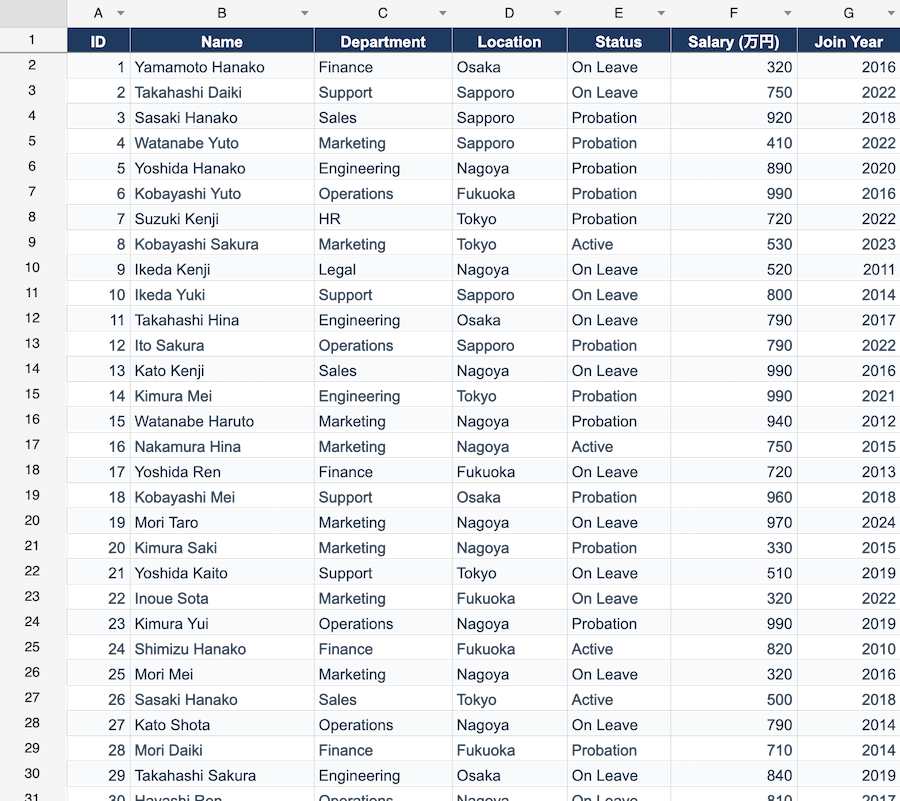
You have a spreadsheet with thousands of rows — support tickets, product listings, survey responses — and you want an LLM to do something to every row: classify it, clean it, extract a field, translate it. Doing that by hand is hopeless; doing it well needs a real pipeline.
This is that pipeline. Four stages: convert the xlsx to JSON in the browser, send the rows to an LLM as JSON, get structured JSON back, and write the results into a new column. We’ll use ReoGrid for the spreadsheet side and Claude for the AI side, and finish with the Batch API for processing thousands of rows cheaply.
Why JSON is the right interface here. LLMs work with text, not
.xlsxbinaries. Converting the sheet to a compact array of row objects gives the model clean, token-efficient input — and gives you a structured result you can write straight back into the grid. See Convert XLSX to JSON in the browser for that first hop.
The architecture
Keep the two halves separate:
- Browser — the user picks an xlsx; ReoGrid parses it locally and extracts plain data rows. The file never leaves their device until you send the (smaller, structured) JSON.
- Your backend — receives the JSON rows and calls the LLM. The API key lives server-side, never in the browser.
[ xlsx file ] --browser--> [ JSON rows ] --POST--> [ your API ] --> [ Claude ] --> [ results ]
                                                                                      |
[ grid + new "AI" column ] <----------------------------- write back ----------------+
Stage 1 — xlsx → data rows (browser)
Load the file and read it as an array of objects keyed by the header. (Full helper in the xlsx-to-data-rows recipe.)
import { createReogrid, type ReogridInstance } from '@reogrid/pro';

const grid = createReogrid('#grid', { licenseKey: 'YOUR-LICENSE-KEY' });
await grid.loadFromFile(file);

function sheetToRows(grid: ReogridInstance): Record<string, string>[] {
  const ws = grid.worksheet;
  const snap = ws.getExportSnapshot();
  let lastRow = 0, lastCol = 0;
  for (const cell of snap.cells) {
    lastRow = Math.max(lastRow, cell.row);
    lastCol = Math.max(lastCol, cell.column);
  }
  const headers: string[] = [];
  for (let c = 0; c <= lastCol; c++) headers[c] = (ws.getDisplayText(0, c) || `col${c}`).trim();
  const rows: Record<string, string>[] = [];
  for (let r = 1; r <= lastRow; r++) {
    const row: Record<string, string> = {};
    for (let c = 0; c <= lastCol; c++) row[headers[c]] = ws.getDisplayText(r, c) ?? '';
    rows.push(row);
  }
  return rows;
}

const rows = sheetToRows(grid);
// → [{ Ticket: 'App crashes on login', Priority: '' }, …]
Stage 2 — send rows to Claude (backend)
On your server, send a chunk of rows to the model and ask for structured JSON back. Here we classify each support ticket and suggest a priority. Using the Anthropic SDK with a json_schema output format guarantees the response parses.
import Anthropic from '@anthropic-ai/sdk';

const client = new Anthropic(); // reads ANTHROPIC_API_KEY from the environment

const schema = {
  type: 'object',
  additionalProperties: false,
  properties: {
    results: {
      type: 'array',
      items: {
        type: 'object',
        additionalProperties: false,
        properties: {
          index: { type: 'integer' },
          category: { type: 'string', enum: ['bug', 'billing', 'feature', 'other'] },
          priority: { type: 'string', enum: ['low', 'medium', 'high'] },
        },
        required: ['index', 'category', 'priority'],
      },
    },
  },
  required: ['results'],
};

async function classifyChunk(rows: Record<string, string>[]) {
  const response = await client.messages.create({
    model: 'claude-opus-4-8',
    max_tokens: 16000,
    thinking: { type: 'adaptive' },
    output_config: { format: { type: 'json_schema', schema } },
    messages: [{
      role: 'user',
      content:
        'Classify each support ticket by category and priority. ' +
        'Return one result per row, keyed by its array index.\n\n' +
        JSON.stringify(rows.map((r, index) => ({ index, ticket: r.Ticket }))),
    }],
  });

  const text = response.content.find((b) => b.type === 'text');
  return JSON.parse(text!.text).results as {
    index: number; category: string; priority: string;
  }[];
}
JSON goes in, structured JSON comes out — exactly the shape you can merge back into the rows.
Stage 3 — scale with the Batch API
Calling the model once per chunk is fine for hundreds of rows. For thousands, use the Message Batches API: submit all chunks at once, let them process asynchronously, and pay 50% less.
// Submit one request per chunk
const batch = await client.messages.batches.create({
  requests: chunks.map((chunk, i) => ({
    custom_id: `chunk-${i}`,
    params: {
      model: 'claude-opus-4-8',
      max_tokens: 16000,
      output_config: { format: { type: 'json_schema', schema } },
      messages: [{ role: 'user', content: buildPrompt(chunk) }],
    },
  })),
});

// Poll until done (most batches finish within an hour)
let status = await client.messages.batches.retrieve(batch.id);
while (status.processing_status !== 'ended') {
  await new Promise((r) => setTimeout(r, 60_000));
  status = await client.messages.batches.retrieve(batch.id);
}

// Collect results — they arrive in any order, so key by custom_id
const byChunk: Record<string, unknown> = {};
for await (const result of await client.messages.batches.results(batch.id)) {
  if (result.result.type === 'succeeded') {
    const text = result.result.message.content.find((b) => b.type === 'text');
    byChunk[result.custom_id] = JSON.parse(text!.text);
  }
}
Chunk to keep each request comfortably within the context window (a few hundred rows per request is a good starting point), and always match results by custom_id — batch results are not returned in order.
Stage 4 — write results back into the grid
Send the merged results back to the browser and write them into a new column, so the user sees the AI output alongside their data and can export it.
const ws = grid.worksheet;

// Header for the new column
const aiCol = headers.length;
ws.cell(0, aiCol).setValue('AI Priority').setStyle({ bold: true });

// One value per row
results.forEach((res) => {
  ws.cell(res.index + 1, aiCol).setValue(res.priority);
});

// Optional: export the enriched sheet back to xlsx (Pro)
grid.saveAsXlsx({ filename: 'tickets-classified.xlsx' });
The user gets their spreadsheet back, enriched — same file, one new column, ready to download.
What this pattern is good for
- Classification / tagging — categories, sentiment, priority, routing.
- Cleanup / normalization — fix inconsistent formats, split full names, standardize addresses.
- Extraction — pull a structured field out of a free-text column.
- Translation / rewriting — localize a column, rewrite product descriptions.
Anything you’d do row-by-row by hand, the LLM can do across the whole sheet — and the JSON round-trip keeps it structured at both ends.
Notes on cost, privacy, and accuracy
- Privacy. The xlsx is parsed in the browser; only the rows you choose to process are sent to your backend. Strip or redact sensitive columns before they leave the client.
- Cost. The Batch API halves token cost for non-urgent jobs. Send only the columns the task needs — not the whole row — to cut tokens further.
- Accuracy. A
json_schemaoutput format guarantees the shape of the response; it doesn’t guarantee the judgment. Spot-check a sample, and keep the user in the loop by writing results into the grid for review rather than auto-applying them.
See also
- XLSX → JSON Converter demo — convert a file live, with the source
- Convert XLSX to JSON in the browser — the conversion step
- Extract Excel data as JSON for your app — the data-extraction step
- Convert XLSX to Data Rows — the bare helper
- ReoGrid JSON Format — the lossless format reference